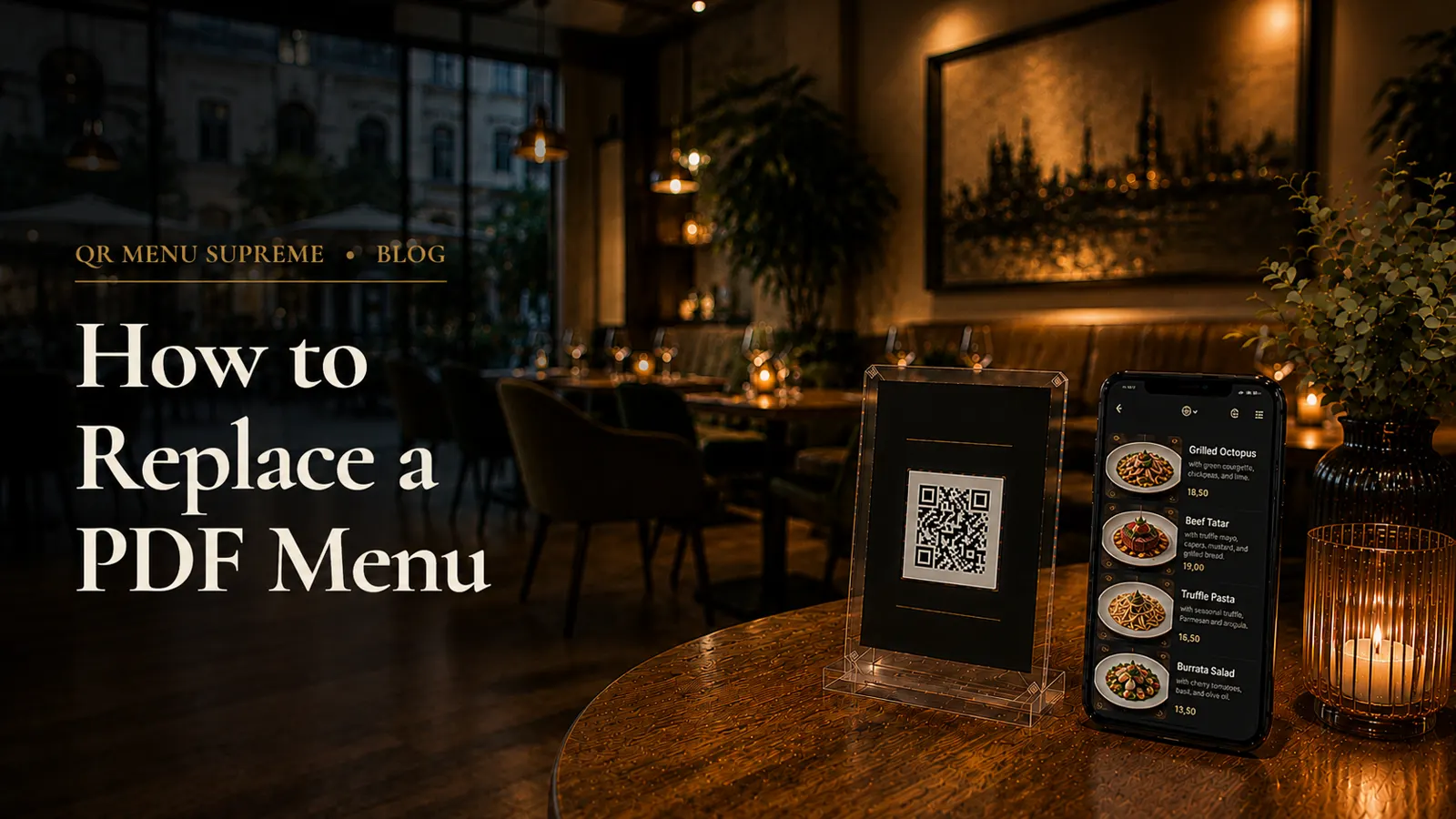
How to Replace a PDF Menu With a Real Digital Menu
A PDF on a Phone Is Still a PDF
The QR code works. The menu opens. Technically, the restaurant has gone digital.
Then the guest puts two fingers on the screen and begins to zoom.
The type is too small. The drinks are on page seven. A dish that sold out an hour ago is still listed, because removing it means editing the source file, exporting another PDF, uploading it, and checking that the QR code still points to the right place. On an older phone, the file takes several seconds to load. On a weak connection, it may not open at all.
This is the central problem with PDF menus: they move a document from paper to a screen without changing the document itself. The restaurant saves some printing, but the guest inherits a layout designed for a page rather than a phone.
A real digital menu works differently. Categories, dishes, prices, descriptions, allergens, and images are separate pieces of content inside a mobile interface. Staff can change one price without rebuilding the entire menu. Guests can move between sections without pinching and dragging a page around the screen. Automatic language detection with manual switching, item availability, ordering, and payment can be added without creating a second system.
Replacing a PDF does not require a redesign project or a technical team. It does require treating the migration as more than a file upload. The goal is not to make the old menu appear online. The goal is to rebuild the menu around the way guests actually use it.
PDF Menu vs Real Digital Menu
The difference is easiest to see in the small moments of service.
When the kitchen sells the last portion of sea bass, a PDF menu remains wrong until someone edits and republishes it. In a structured digital menu, a manager can hide the dish or mark it unavailable from a phone.
When a guest wants to check whether a starter contains nuts, a PDF asks them to search a page visually. A digital menu can place allergen information directly with the item.
When a tourist wants to read the menu in another language, the restaurant with a PDF needs another file, another link, or a bilingual layout with even smaller type. A multilingual digital menu can detect the guest's device or browser language on a first visit, display the matching available translation, and still let the guest switch manually. If that language is not available, it falls back to the restaurant's working language. A later manual switch is remembered for later visits.
| Task or feature | PDF menu behind a QR code | Real digital menu |
|---|---|---|
| Reading on a phone | Often requires zooming | Designed for a small screen |
| Change one price | Edit, export, and upload the file | Edit the item and save |
| Mark an item sold out | Usually requires a new PDF | Hide or update the item immediately |
| Navigate categories | Scroll through pages | Tap or jump between sections |
| Add another language | Create and maintain another file | Auto-detect on first visit, fallback, saved switch |
| Show allergens and dietary details | Limited by page layout | Attached to each item |
| Add ordering or payment | Requires a separate flow | Can be enabled in the same system |
| Measure guest use | Usually limited to file opens | Platform-dependent menu analytics |
There are situations in which a PDF is sufficient. A one-page wine list that changes twice a year may cause little friction. A tasting menu with six courses and no choices may not need interactive navigation. But for a restaurant with multiple categories, regular price changes, rotating dishes, international guests, or plans to add ordering, the limits become visible quickly.
If you are still comparing options, the broader guide to what to look for in a digital menu system covers the questions worth asking before you commit to a platform.
Step 1: Audit the PDF Before You Move Anything
Do not begin by copying the first item into a new platform. Begin by checking whether the PDF is still accurate.
Restaurant menus accumulate small inconsistencies. A price was changed on the printed insert but not in the master file. The kitchen altered a garnish without updating the description. “V” means vegan in one section and vegetarian in another. A dish that disappeared months ago remains in a forgotten lunch menu.
Use the migration to create one reliable source of truth. Review the PDF with the chef, bar manager, or person who owns each part of the menu. For every item, confirm:
- Item name and spelling
- Current price and currency format
- Description and portion details
- Category
- Allergen information
- Vegetarian, vegan, gluten-free, or other dietary labels
- Availability by day or service
- Whether the item should still be offered
Also collect every version of the menu that guests currently encounter: lunch, dinner, drinks, desserts, room service, happy hour, delivery, and seasonal inserts. If two documents disagree, resolve the difference before entering either version.
This review is the most valuable part of the migration. Software can import text. It cannot decide which of two prices is correct.
Step 2: Decide What the New Menu Needs to Do
A PDF answers one question: what is available? A digital menu can do more, but more is not always better on day one.
Decide which level suits the restaurant now:
Display only. Guests browse on their phones and order through staff. This is the closest replacement for a PDF and the simplest launch.
Display with table ordering. Guests browse and send an order from the table. Staff still handle service and may take conventional orders as well.
Display, ordering, and payment. Guests can complete the entire transaction on the phone. This requires more operational planning, including table identification, payment processing, and a clear workflow for the kitchen and floor team.
Starting with display only is often sensible. It isolates the menu migration from a larger change to service. The important point is to choose a platform that can add ordering or payment later if those features are part of the plan.
Look beyond the feature list. Open a sample menu on an ordinary phone. Check whether categories are clear, text is readable, and the page loads without unnecessary steps. Try editing an item from the manager side. A polished sales page tells you less than changing a price yourself.
For small teams evaluating software without technical support, our review of QR menu platforms for restaurants without a tech team explains what matters in daily use.
Step 3: Turn Pages Into a Menu Structure
A PDF has pages. A digital menu needs categories.
That sounds like a minor distinction, but it changes how guests find things. On paper, a designer can place starters at the top left, mains across a two-page spread, and side dishes in a box. On a phone, the information needs a clear hierarchy that works vertically.
Create the category structure before adding individual items. A typical restaurant might use:
- Starters
- Salads
- Main Courses
- Sides
- Desserts
- Soft Drinks
- Wine
- Beer
- Cocktails
Do not preserve the PDF's page breaks simply because they already exist. Combine categories that contain only one item. Split sections that force guests to scroll through dozens of choices. Put the categories people use most where they can reach them quickly.
Then decide how much information each item needs. A useful digital listing usually includes a name, a concise description, a price, and relevant dietary or allergen details. Photographs can help when appearance is important or a dish may be unfamiliar, but a menu does not need an image for every item. A handful of good, consistent photographs is better than a screen full of dark, mismatched phone shots.
Descriptions should inform rather than perform. “Roasted squash, whipped feta, hazelnut, sage” helps a guest decide. “An unforgettable seasonal creation made with love” does not.
Step 4: Import Carefully, Then Edit Like a Human
Some digital menu tools can read an existing PDF or photograph and turn its contents into editable menu items. This can remove much of the repetitive typing, particularly for long drinks lists.
It does not remove the need for an editor.
PDF extraction can confuse columns, attach the wrong price to an item, drop accented characters, or treat a footer as part of a dish description. Decorative layouts are especially difficult: text that looks obviously connected to a person may not be stored in the file in the same order.
After import, review the menu in three passes:
First pass: structure. Check that every item is in the correct category and that category names appear in a sensible order.
Second pass: accuracy. Compare names, descriptions, prices, and allergens against the approved source. Read every price aloud or have a second person verify it. A typo in an adjective is embarrassing; a wrong price becomes a dispute at the table.
Third pass: mobile editing. Shorten descriptions that dominate the screen. Break up dense sections. Remove printer's marks, page references, legal footers, and instructions that made sense only in the PDF.
This is where the new menu stops looking imported and starts feeling intentional. The writing should sound like the restaurant, not like a document-processing tool.
For a full walkthrough of category setup, item entry, testing, and table placement, see our step-by-step guide to creating a QR code menu.
Step 5: Build for the Guest Who Is Standing in Front of You
Restaurant managers usually review menus on a laptop. Guests usually open them on a phone, often one-handed, in uneven light, while talking to someone across the table.
Test for that situation.
Open the menu on at least one iPhone and one Android phone. If possible, include an older or mid-range device rather than testing only on the newest model. Turn off the restaurant Wi-Fi once and load it over a mobile connection. Sit at an actual table during the evening and scan the code under service lighting.
Check the complete path:
- Is the QR code easy to find and scan?
- Does the menu open without an app download or login?
- Is the first screen immediately understandable?
- Can a guest reach drinks, desserts, or another major category quickly?
- Are prices and dietary details clear?
- Does the back button behave as expected?
- Does the menu open automatically in the phone's language on a first visit when that translation is available, and fall back to the working language when it is not?
- Is the manual language selector easy to find, and is a later visit remembered?
Multilingual support is one of the clearest advantages over maintaining separate PDF files. A restaurant can update an item once instead of repeating the same correction across several documents. Our guide to multilingual QR menus for restaurants looks at automatic language detection, manual switching, and translation quality in more detail.
Accessibility deserves the same attention. Use plain category labels, readable contrast, meaningful image descriptions where the platform supports them, and concise text. Do not make color the only way to distinguish vegan, vegetarian, or allergen information.
Step 6: Handle the QR Code Without Breaking the Guest Journey
The menu may be ready, but the old QR code is still on table tents, window stickers, printed menus, takeaway packaging, and social profiles.
Whether it can be reused depends on how it was created.
A dynamic QR code or controlled redirect can often keep the same printed code while its destination changes from the PDF to the new menu.
A static QR code that points directly to the PDF URL cannot be edited. In that case, the restaurant needs a new code and new printed materials.
There is one possible exception: if you control the old PDF URL on your own website, a developer may be able to redirect that address to the new menu. Confirm that the redirect works reliably before relying on it. Do not simply replace the PDF with an HTML page at the same file path and assume every browser or cache will behave correctly.
Make a list of every place the old code appears. Replace or redirect all of them together, then scan every version. A code on the window may have been generated at a different time from the one on the tables.
Keep the instruction beside the code simple: “Scan to view our menu.” If ordering is enabled, say so. Do not promise “order and pay” if the link opens a display-only menu.
Step 7: Launch Without Making Guests Test It for You
Choose a quiet service for the changeover. Do not publish the new system five minutes before a fully booked Friday evening.
Brief the staff before the first guest sees it. Everyone on the floor should know:
- What appears after a guest scans
- How the automatic language detection works and how to switch language manually
- Whether guests can order or pay through the menu
- How to help if a phone does not scan the code
- Where printed backup menus are kept
- Who can correct an item during service
For the first few days, ask staff to note where guests hesitate. Analytics may show that a category receives few views, but a server can tell you why: the label is unclear, the drinks section is buried, or guests do not realize they can tap an image.
Make small corrections quickly. That is the point of leaving the PDF behind.
Do not discard every printed menu on launch day. Keep clean copies for guests who do not have a phone, prefer not to use one, need a different accessibility option, or encounter a connection problem. A digital menu should widen access, not turn a charged smartphone into a condition of service. If you plan to keep both formats long term, read why a QR menu and printed menu can work together.
What the Migration Actually Costs
Replacing a PDF usually costs more in staff attention than in technology.
The work includes checking the source menu, organizing categories, reviewing imported content, testing the guest experience, and replacing QR materials if necessary. For a short café menu, that may take one or two hours. For a restaurant with several menus, photographs, detailed allergens, and multiple languages, an afternoon is more realistic.
The return comes from removing repeated work. The next price change affects one item, not an entire file. A sold-out dish can disappear during service. A spelling error does not wait for a designer. Another language does not require a second PDF that must remain synchronized forever.
Printing is only part of the calculation. The less visible cost is the time spent sending edits back and forth, exporting files, checking versions, and discovering that an old PDF is still linked somewhere. Our comparison of QR menu and printed menu costs examines those recurring costs in more detail.
Migration Checklist
Before removing the old PDF, confirm that:
- Every current menu has been included
- Names, prices, descriptions, and allergens have been verified
- Categories make sense on a phone
- The menu has been tested on iPhone and Android
- Language options have been reviewed
- All old QR code locations have been identified
- Redirects or replacement codes have been tested
- Staff know how the menu works
- Printed backup menus are available
- One person owns corrections during the first week
A launch is complete only when the guest reaches the correct menu from every code the restaurant has distributed.
Frequently Asked Questions
What is the difference between a PDF menu and a digital menu?
A PDF menu is a fixed document displayed on a screen. A real digital menu is built for phones, with structured categories and items that can be edited individually. Depending on the platform, it can also support search, automatic device-language detection with manual switching, availability updates, ordering, and payment.
Can I convert my existing PDF instead of entering every item manually?
Some platforms can extract names, descriptions, and prices from a PDF or menu photo. Treat the result as a first draft. Review prices, allergens, category names, special characters, and any text taken from a multi-column or highly designed layout.
Will I need to print new QR codes?
It depends on where the current code points. If you control a redirect or use a dynamic QR code, you may be able to change its destination. If the code links directly to the PDF file, you will usually need a new one. Test every printed code before launch.
How long does it take to replace a PDF menu?
A café or bar with a short menu may finish in one or two hours. A full restaurant menu with detailed descriptions, allergens, and photographs can take an afternoon. Most of that time goes into checking and organizing content, not learning the software.
Should I keep printed menus after switching?
Yes, at least a small number. They provide an alternative for guests who cannot or do not want to use a phone, and they keep service moving if the connection or platform is temporarily unavailable.
Conclusion
A PDF menu is digital in the narrowest sense: it is a file rather than a sheet of paper. But it still carries the habits and limitations of print.
A real digital menu changes the working method. Individual items can be corrected without rebuilding the whole document. Guests get an interface designed for the device in their hands. The restaurant gains room to add languages, availability controls, ordering, and payment when those features become useful.
The migration is not complicated, but it rewards care. Audit the old menu, build a clear structure, review every imported detail, test the experience at a real table, and make sure no old QR code leads guests to the wrong place.
QR Menu Supreme's QR menu builder lets restaurants upload an existing PDF or menu image, preview the result, and build a mobile-friendly menu without a credit card. Start with a small section, scan it on your own phone, and judge the experience from the guest's side of the table.
See a live QR menu in 10 seconds
Browse the showcase demo restaurant, built with QR Menu Supreme.