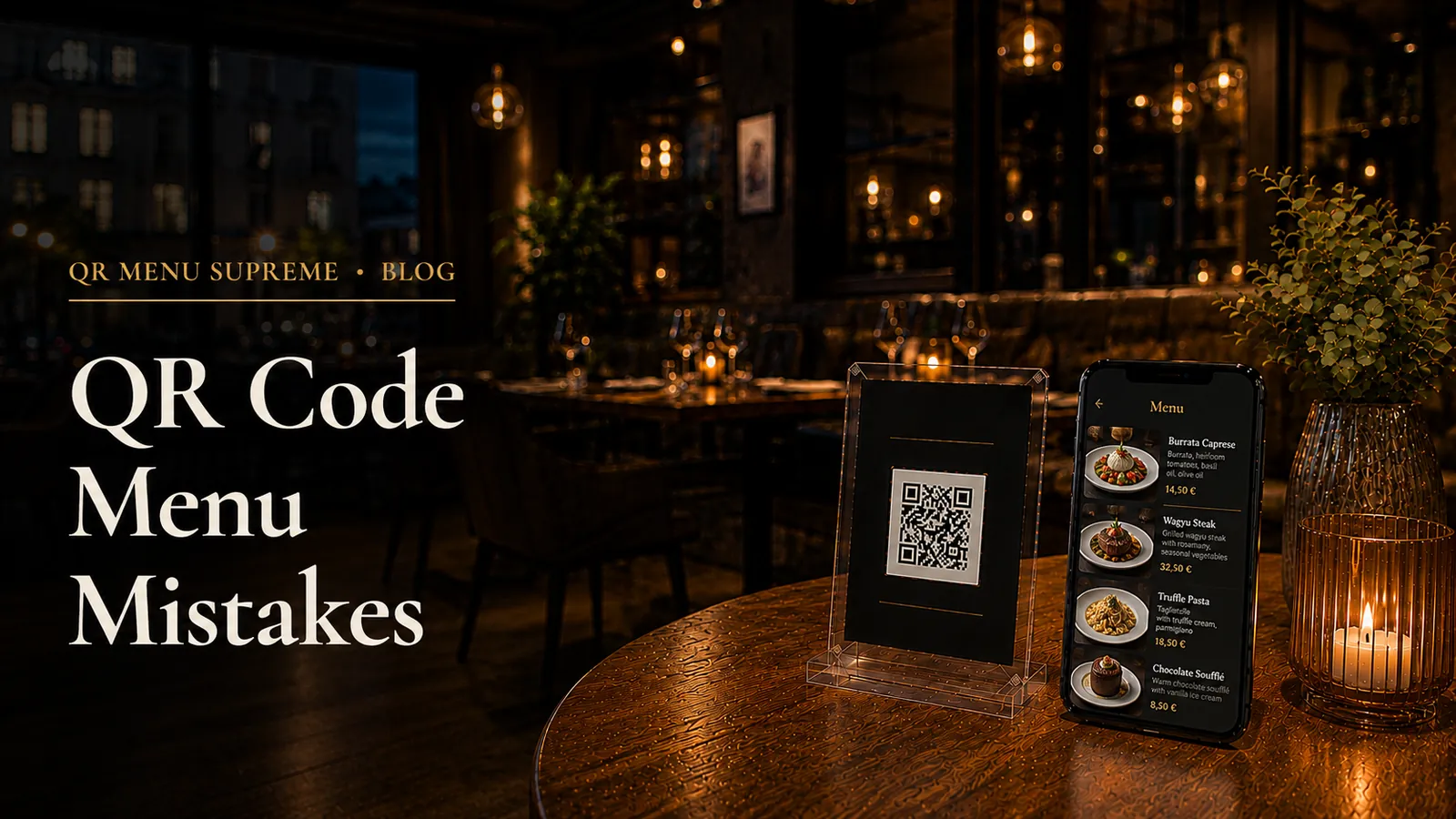
QR Code Menu Mistakes Restaurant Owners Should Avoid
The QR Code Is Usually Not the Problem
A guest sits down, points a phone at the table card, and waits.
The code scans. Then the trouble begins.
The menu opens as a seven-page PDF. The type is small, the cocktails are hard to find, and the price of the grilled fish is different from the one the server quotes. Another guest sees a loading screen on an older phone. At the next table, a water glass has been placed directly over the code. The staff know there is a digital menu, but no one is quite sure whether guests can order through it.
None of these failures is dramatic. That is why they survive.
A QR menu rarely breaks in one obvious way. More often, it creates a series of small hesitations: Where are the drinks? Is this price current? Do I order here or wait for a server? Can I see a printed menu instead? Each question adds friction to a part of the meal that should feel effortless.
Restaurant owners sometimes treat the QR code as a finished product. It is not. The code is only a doorway. What matters is where it leads, how quickly the page opens, whether the information is trustworthy, and how the digital menu fits into service.
The following mistakes are common because each one seems minor in isolation. Together, they determine whether a QR menu saves time or quietly creates more work.
Mistake 1: Putting a PDF Behind the QR Code
Uploading the print menu as a PDF is the fastest way to launch a QR code. It is also the fastest way to reproduce the limitations of paper on a smaller screen.
A PDF has fixed pages. A phone has a narrow, scrolling display. Unless the document was designed specifically for that screen, guests must pinch to zoom, drag from side to side, and remember which page held the section they wanted. Large files load slowly on weak connections. Updating one price may require editing the source document, exporting it again, and replacing the file.
A real digital menu stores categories, items, descriptions, prices, allergens, and images as separate content. Guests can move between sections without navigating pages. Staff can change one item without rebuilding everything.
There are exceptions. A short tasting menu or a one-page wine list that rarely changes may work adequately as a PDF. But a full restaurant menu with multiple sections, regular updates, or international guests deserves a mobile-first format.
If a PDF is your starting point, use it as source material rather than the final guest experience. Our guide to replacing a PDF with a real digital menu explains how to reorganize the content without losing control of prices, allergens, or categories.
Mistake 2: Designing the Menu on a Laptop and Calling It Mobile-Friendly
Restaurant managers build menus at a desk. Guests open them at a table.
That difference matters. A layout that looks clean in a wide browser window may feel dense on a six-inch screen. A category bar may wrap onto several lines. Descriptions may push prices below the fold. Photographs that looked modest on a laptop may take over the entire display.
Review the menu on the devices guests actually use. Include an iPhone, an Android phone, and, if possible, an older or mid-range model. Hold the phone in one hand. Turn down the screen brightness. Try to find a dessert, then return to the drinks section.
Watch for:
- Text that requires zooming
- Category names that are truncated or unclear
- Prices separated from their items
- Images that delay the page or dominate the screen
- Long descriptions that hide the next choice
- Buttons placed too close together
- Navigation that loses the guest's place
Mobile-first does not mean shrinking a desktop page until it fits. It means deciding what a guest needs first, then arranging the menu around that sequence.
Mistake 3: Printing the Code Before Testing It at the Table
A QR code that works on a monitor can fail after it is printed.
Glossy finishes reflect overhead lights. Low-contrast brand colors weaken the pattern. A code printed too small becomes difficult to scan from a seated position. A decorative border can crowd the clear area around it. On a folded table tent, the code may curve or sit at an angle. On the table itself, cutlery, menus, and glasses cover it.
Do not approve a full print run from a digital proof.
Print one sample at the intended size and on the intended material. Put it where guests will see it. Test during daytime and evening service conditions, not only in a bright office. Scan from the position of a seated guest with several phone cameras.
Keep the visual treatment restrained. Strong contrast is more valuable than a clever color scheme. Leave clear space around the code. Place the restaurant logo beside it rather than covering too much of the pattern. Include a direct instruction such as “Scan to view our menu.”
The test should answer one practical question: Can an ordinary guest recognize and scan this without picking up the table display or asking for help?
Mistake 4: Linking the Code Directly to Something You May Replace
Static QR codes are permanent. Their destinations are not editable.
If a code points directly to a PDF file, temporary campaign page, or menu address controlled by a third-party provider, changing that destination may require printing every code again. The problem often appears months later, after the same code has spread to table tents, takeaway cards, window stickers, hotel room folders, and social posts.
Before printing, understand what the code contains.
For a display-only menu, one shared code can work across every table. It should lead to a stable menu address that you expect to keep.
For table ordering, each table usually needs a unique code so the platform knows where to send the order. Reusing one general code may create manual work or send orders without a reliable table reference.
For a destination that may change, use a redirect you control or a reputable dynamic QR service. Check whether the redirect has subscription limits, tracking requirements, or an expiration policy before depending on it.
Keep a record of where each code appears. If the destination changes, a complete inventory prevents an old sticker from sending guests to an abandoned page months after launch.
Mistake 5: Making Guests Download an App or Create an Account
A menu is not a loyalty program enrollment form.
Guests scan because they want to decide what to eat. Requiring an app download, account creation, email address, or phone number before they can read the menu turns a simple task into a negotiation over time and privacy.
The browsing experience should open immediately in the phone's browser. No login. No app store. No personal details.
Ordering and payment may require additional information at the appropriate stage, but browsing should remain open. Ask only for data that is genuinely necessary to complete the action the guest chose.
This is also a useful platform test. Scan a sample code in a private browser window where you are not already signed in. If the menu assumes an existing account, hides behind a cookie wall, or interrupts the guest with promotional prompts, the restaurant will inherit that friction.
Mistake 6: Letting the Digital Menu and the Kitchen Disagree
Guests trust the menu until the restaurant gives them a reason not to.
An unavailable dish left online, an outdated happy-hour price, or an old ingredient description turns a convenience into a source of conflict. The server then has to correct the menu at the table, apologize, and ask the guest to choose again.
Real-time editing is useful only if someone owns the edit.
Decide who is responsible for each type of update:
- The kitchen marks sold-out dishes or tells a designated manager
- The bar lead owns changes to drinks and vintages
- A manager approves price changes
- One person checks seasonal menus before they become visible
- Allergen changes require confirmation rather than an informal guess
Build menu updates into existing routines. The pre-service meeting is an obvious place to confirm specials, unavailable items, and price changes. A weekly check can catch sections that rarely receive attention.
The menu should be treated like the reservation book or point-of-sale system: operational information that must be current, not marketing material that gets reviewed once a quarter.
Mistake 7: Writing Descriptions That Sound Attractive but Say Nothing
Digital space is limited. Every line should help the guest decide.
“A delicious house favorite made with love” occupies space without explaining ingredients, preparation, portion, or flavor. “Charred octopus, white bean purée, preserved lemon, smoked paprika” does the job in fewer words.
Useful descriptions answer the questions a guest would otherwise ask:
- What are the main ingredients?
- How is it prepared?
- Is the flavor spicy, rich, smoky, or light?
- Does it come with a side?
- Is it suitable for a particular diet?
- Is there an allergen the guest needs to investigate further?
Do not let the digital format encourage longer copy simply because there is no physical page limit. Concise descriptions make the menu faster to scan and reduce repetitive questions during service.
Allergen and dietary information should be consistent. Do not use “V” for vegetarian in one category and vegan in another. If an icon is used, provide a key and do not rely on color alone.
Mistake 8: Adding Too Many Bad Photographs
Food photography can clarify an unfamiliar dish and make a menu feel more tangible. It can also make a good restaurant look careless.
Common problems include mixed aspect ratios, yellow lighting, cluttered backgrounds, empty plates photographed from too far away, and images so large that guests scroll past photographs instead of choices. Inconsistent images are often more distracting than no images at all.
Choose a deliberate approach:
No photographs can suit fine dining, frequently changing menus, and restaurants whose descriptions already communicate the food clearly.
Selected photographs work well for signature dishes, visually unfamiliar items, and categories where a picture genuinely assists the choice.
A photograph for every item can be effective for fast-casual concepts and menus where appearance is central, but only when the image quality and framing are consistent.
Compress images before uploading and review loading speed over mobile data. A beautiful menu that takes too long to open is not a successful menu.
Mistake 9: Offering Every Feature on Day One
A platform may support display, ordering, payment, multiple languages, loyalty tools, analytics, and promotions. That does not mean the restaurant needs to activate all of them at launch.
Changing the menu format is one operational change. Changing how orders reach the kitchen and how guests pay is another. Combining everything at once makes problems harder to diagnose and staff training harder to absorb.
Start with the service problem you are trying to solve.
If the goal is to stop reprinting menus, begin with display and real-time updates. If long waits for the check are the problem, payment may deserve priority. If international guests repeatedly need translations, focus on automatic device-language detection, an easy manual switch, and accurate descriptions.
Add features after the core menu works reliably. Choose a system that can grow without forcing a complete rebuild, but do not confuse future capability with immediate necessity. The checklist in our guide to choosing a digital menu system can help separate useful functions from an impressive but irrelevant feature list.
Mistake 10: Treating Automatic Translation as Finished Copy
Machine translation is useful, fast, and increasingly capable. Restaurant language is also unusually easy to misunderstand.
Regional dish names, cooking methods, ingredient varieties, and playful descriptions may not have direct equivalents. A literal translation can be grammatically correct while giving the guest the wrong idea about what will arrive.
Use automatic translation as a first draft. Then review the languages most important to your restaurant with a fluent speaker. Pay particular attention to:
- Allergens and dietary claims
- Meat and seafood species
- Cooking temperatures and methods
- Words such as “free,” “hot,” or “cream” that depend on context
- Dish names that should remain untranslated but need an explanation
Restaurants do not need to launch in every language available. Three accurate language options serve guests better than twenty unchecked ones. Our article on multilingual QR menus for restaurants covers automatic language detection, manual switching, and translation review in more detail.
Mistake 11: Removing Every Printed Menu
A QR menu can be the primary format without being the only format.
Some guests do not have a suitable phone. Some have low battery, limited mobile data, poor vision, or difficulty using a camera. Others simply prefer a printed menu. The restaurant's job is to serve them, not to win an argument about technology.
Keep a small number of clean, current printed menus. Staff should offer one without making the guest explain why it is needed.
Printed copies also provide resilience. Mobile networks slow down. Wi-Fi fails. A platform can have an outage. A backup prevents a technical problem from becoming a service shutdown.
Running both formats does create one responsibility: they must agree. Include the printed copies in every price and menu review. For a practical hybrid approach, see why restaurants can keep printed menus alongside a QR menu.
Mistake 12: Forgetting to Train the People Who Introduce It
The first explanation of a QR menu usually comes from a host or server, not from the table card.
If staff do not know whether guests can order, pay, change language, or request a printed menu, the system feels improvised. A server who says “I think you scan that” undermines confidence before the page opens.
A useful briefing takes minutes. Staff should know:
- What appears after the scan
- Whether the menu is display-only or accepts orders
- How table ordering is identified
- That the menu opens in the detected device or browser language on a first visit, that a later visit may use a saved choice, and how to change the language manually
- How to help with a failed scan
- Where printed menus are stored
- Who can correct an item during service
Give staff a natural sentence to use: “You can scan the code for the live menu, or I can bring you a printed copy.” It explains the option without pressuring the guest.
Then listen to the staff. They will notice recurring confusion before an analytics dashboard does.
Mistake 13: Choosing on Price Without Calculating the Operating Cost
“Free” is not a complete pricing model.
A platform may charge nothing for menu display but require a higher plan for branding, multiple menus, analytics, ordering, or language support. Another may take a percentage of every order. Payment-processing fees may apply even when the menu provider charges no commission.
Compare the cost of the setup you will actually use:
- Number of menus, locations, and items
- Branding and custom-domain requirements
- Ordering and payment fees
- Payment-processing charges
- Language and translation features
- Access for multiple staff members
- Export options if you leave
- Support during restaurant operating hours
Also calculate the cost of switching later. Re-entering a menu, changing every QR code, and retraining staff can outweigh a small monthly saving.
If ordering is part of the plan, understand the difference between a platform commission and a card-processing fee. Our guide to online ordering without platform commissions explains where each charge comes from.
What a Well-Run QR Menu Looks Like
| Area | Weak setup | Better setup |
|---|---|---|
| Menu format | Multi-page PDF | Structured, mobile-first categories |
| First access | App, login, or signup required | Opens directly in the browser |
| QR placement | Small, reflective, partly obscured | High contrast and tested at seated height |
| Content ownership | Updated when someone remembers | Named owners and a regular review |
| Availability | Sold-out items remain visible | Updated before and during service |
| Descriptions | Vague promotional language | Concise ingredients and preparation |
| Images | Large and inconsistent | Selected, consistent, and compressed |
| Languages | Many unchecked translations | Relevant languages reviewed for accuracy |
| Staff role | Unclear how the menu works | Briefed and able to offer a fallback |
| Accessibility | Phone required | Printed alternative available |
| Platform cost | Entry price only | Full operating cost understood |
The better setup is not the one with the most technology. It is the one that creates the fewest questions at the table.
A Five-Minute Pre-Service Check
A QR menu does not need constant maintenance, but a short routine prevents most visible failures.
Before service:
- Scan one table code with a phone that is not logged into the platform
- Confirm the correct menu and service period appear
- Check specials, sold-out items, and prices
- Open the menu over mobile data as well as Wi-Fi
- Inspect table cards for spills, scratches, and obstructions
- Confirm printed backup menus are clean and current
- Ask whether staff know about any menu or ordering changes
Repeat a fuller test after changing platforms, domains, redirects, payment settings, or QR materials. A code that worked yesterday is not proof that every copy still works today.
For restaurants setting up from the beginning, the step-by-step QR code menu guide covers content preparation, platform selection, code generation, placement, and staff briefing in sequence.
Frequently Asked Questions
What is the most common QR code menu mistake?
The most common mistake is treating the QR code as the whole project. The code may scan perfectly while the menu behind it is slow, outdated, difficult to navigate, or simply a PDF that requires zooming. The guest experience after the scan matters more than the code itself.
How large should a menu QR code be?
There is no single correct size because scanning distance, print quality, lighting, and the amount of data in the code all matter. Print a sample at the intended size and test it from a seated guest's position with several phones before ordering table materials.
Should a restaurant remove all printed menus after adding a QR menu?
No. Keep a small number of clean printed menus for guests who do not have a suitable phone, prefer not to use one, need another accessibility option, or encounter a connection problem.
Can the same QR code be used on every table?
Yes for a display-only menu. If guests can order or pay at the table, each table usually needs a unique code so the system can identify where the order originated.
How often should a restaurant test its QR menu?
Test it before launch, after any change to the menu URL or platform, and as part of a regular operational check. Staff should also report damaged table cards, slow loading, outdated content, or codes that have become difficult to scan.
Conclusion
The costliest QR menu mistakes are rarely technical. They are operational.
The wrong price is left online because no one owns updates. The code is difficult to scan because it was tested on a monitor rather than a table. Guests struggle with a PDF because the restaurant digitized the file but not the experience. Staff cannot explain the system because they were never briefed.
Each problem has a straightforward remedy: test in the dining room, assign responsibility, write for a phone screen, keep the path to the menu simple, and preserve a printed fallback.
A good QR menu should disappear into the service. The guest scans, finds what they need, and returns attention to the table. No tutorial. No uncertainty. No reason to think about the technology again.
QR Menu Supreme's QR menu builder lets restaurants create a mobile-friendly menu, generate a QR code, and test the guest experience for free. Build a short sample first, scan it from one of your own tables, and judge it by the questions it removes.
See a live QR menu in 10 seconds
Browse the showcase demo restaurant, built with QR Menu Supreme.